
Connect local IDE
Connect your favorite IDE like VSCode, Cursor, Windsurf, PyCharm or just plain ssh to a Studio to code from your laptop. This will feel exactly the same as coding on your laptop, except that all code, files, and changes happen on the cloud remote Studio. If you set up profiles, settings or plug-ins in your Studio on the browser, keep in mind that these will not persist to your local IDE.
Connect VSCode
Hover over the VSCode plugin and click "Code from local VSCode". Follow the instructions on the page.
How to connect your local VSCode
Once you’ve connected, you can develop on VSCode installed on your laptop. The code, file and data will all execute on Lightning Studio. Once you save your files locally, they’ll be synced to the Studio.
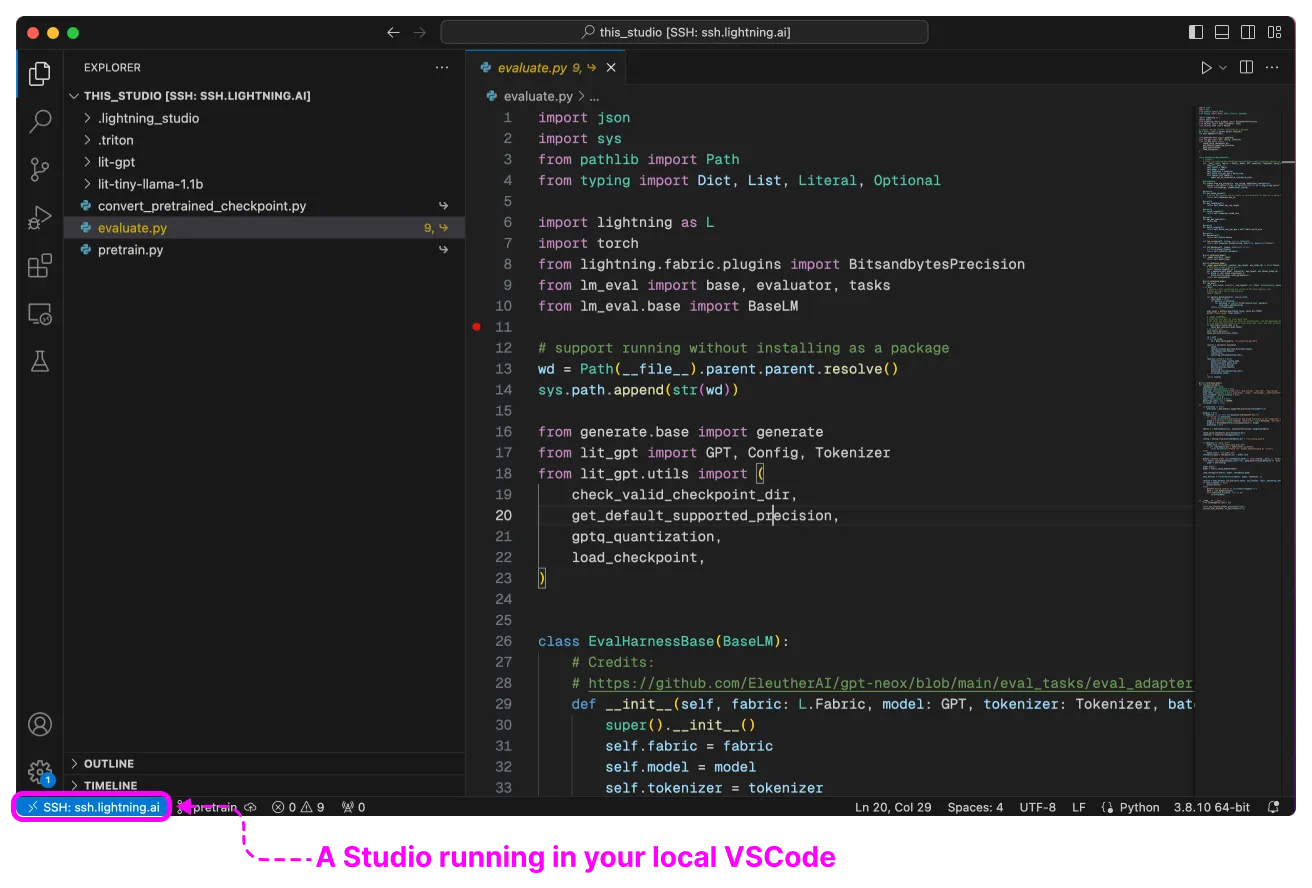
Note: While your local VSCode is connected to the Studio, the Studio will not auto-sleep.
Connect IntelliJ
To connect IntelliJ IDEs, follow the steps described below:
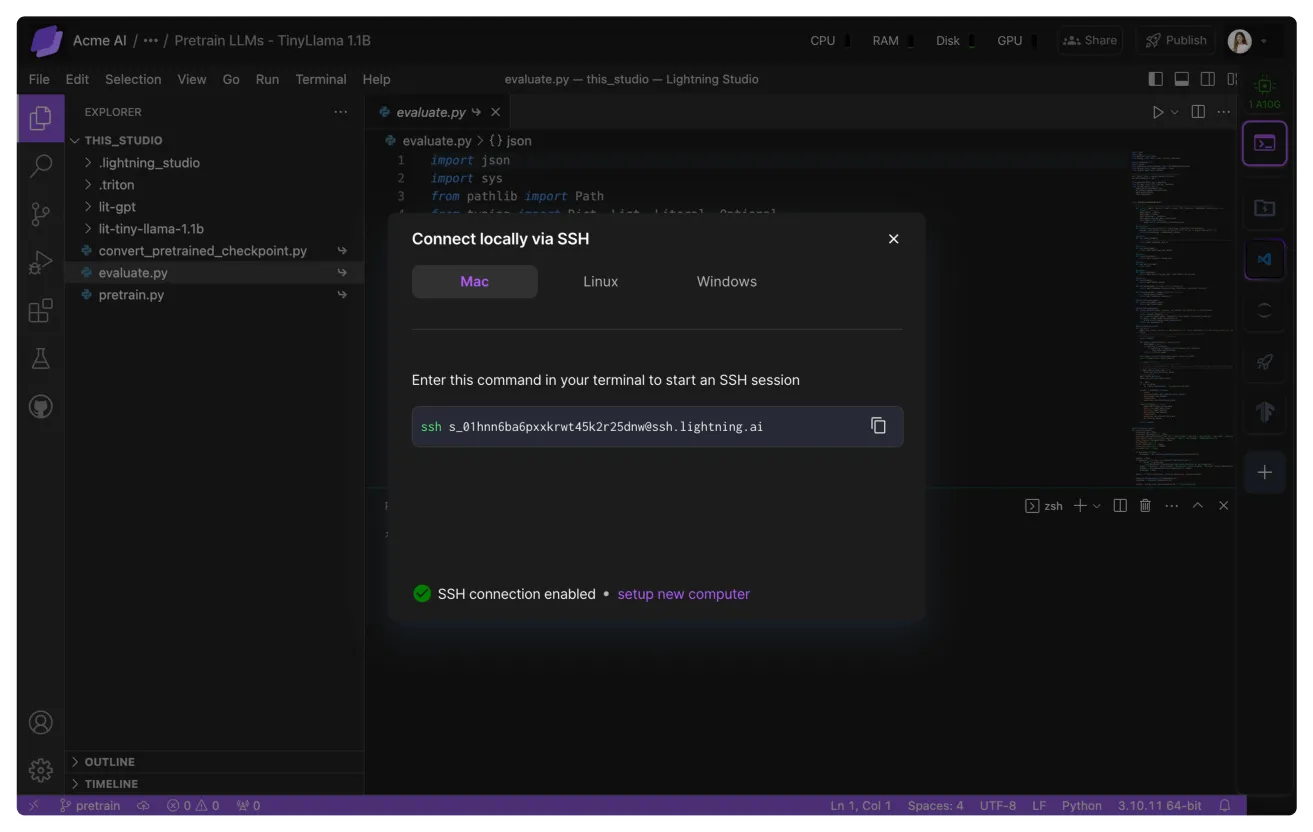
Click the terminal plug in, then "Connect locally via SSH" and follow directions to expose the Username and Host information.
Click "Connect locally via SSH" via the terminal plugin.
Open IntelliJ, click "Remote Development SSH", and paste username and host.
Open up IntelliJ, click "Remote Development SSH" and paste in username and host.
Specify your private key.
Specify your private key.
Select project directory, click "Download IDE and Connect". Now your Studio is connected to your local IntelliJ IDE.
Select your project directory and click "Download IDE and Connect".
Connect PyCharm
To connect to PyCharm, follow the steps described below:
Click the terminal plug in, then "Connect locally via SSH" and follow directions to expose the Username and Host information.
Click "Connect locally via SSH" via the terminal plugin.
Open PyCharm, click "Remote Development SSH", and paste username and host.
Open up PyCharm, click "Remote Development SSH" and paste in username and host.
Specify your private key.
Specify your private key.
Select project directory, click "Download IDE and Connect". Now your Studio is connected to your local PyCharm.
Select your project directory and click "Download IDE and Connect".
Connect Cursor IDE
Cursor is a fork of VSCode and supports all extensions and features supported by VSCode. We will repeat the same steps we followed above to connect with VSCode.
How to connect to cursor IDE.
To connect to Cursor
- Open the terminal plugin, then select "Connect locally via SSH". Follow the instructions to reveal your Username and Host
- Install the
remote-sshCursor plugin - Press
Ctrl+Shift+Pand run the command:Remote-SSH: Add New SSH Host - Paste the SSH command you obtained in step 1
- Press
Enterand select your~/.ssh/configfile if prompted - Press
Ctrl+Shift+Pand run:Remote-SSH: Connect to Host - Select
ssh.lightning.aifrom the list. - When prompted to open a folder, click on
this_studio
Connect Windsurf IDE
Windsurf is a fork of VSCode, so we can connect it by following similar steps to VSCode above.
Connecting Windsurf via SSH
To connect to Windsurf
- Open the terminal plugin, then select "Connect locally via SSH". Follow the instructions to reveal your Username and Host
- Press
Ctrl+Shift+Pin Windsurf and run the command:Remote-SSH: Connect to SSH Host - Paste the
<user>@ssh.lightning.aipart of the command you obtained in step 1 - Press enter to start the SSH session
- When prompted to open a folder, click on
this_studio
Connect Antigravity
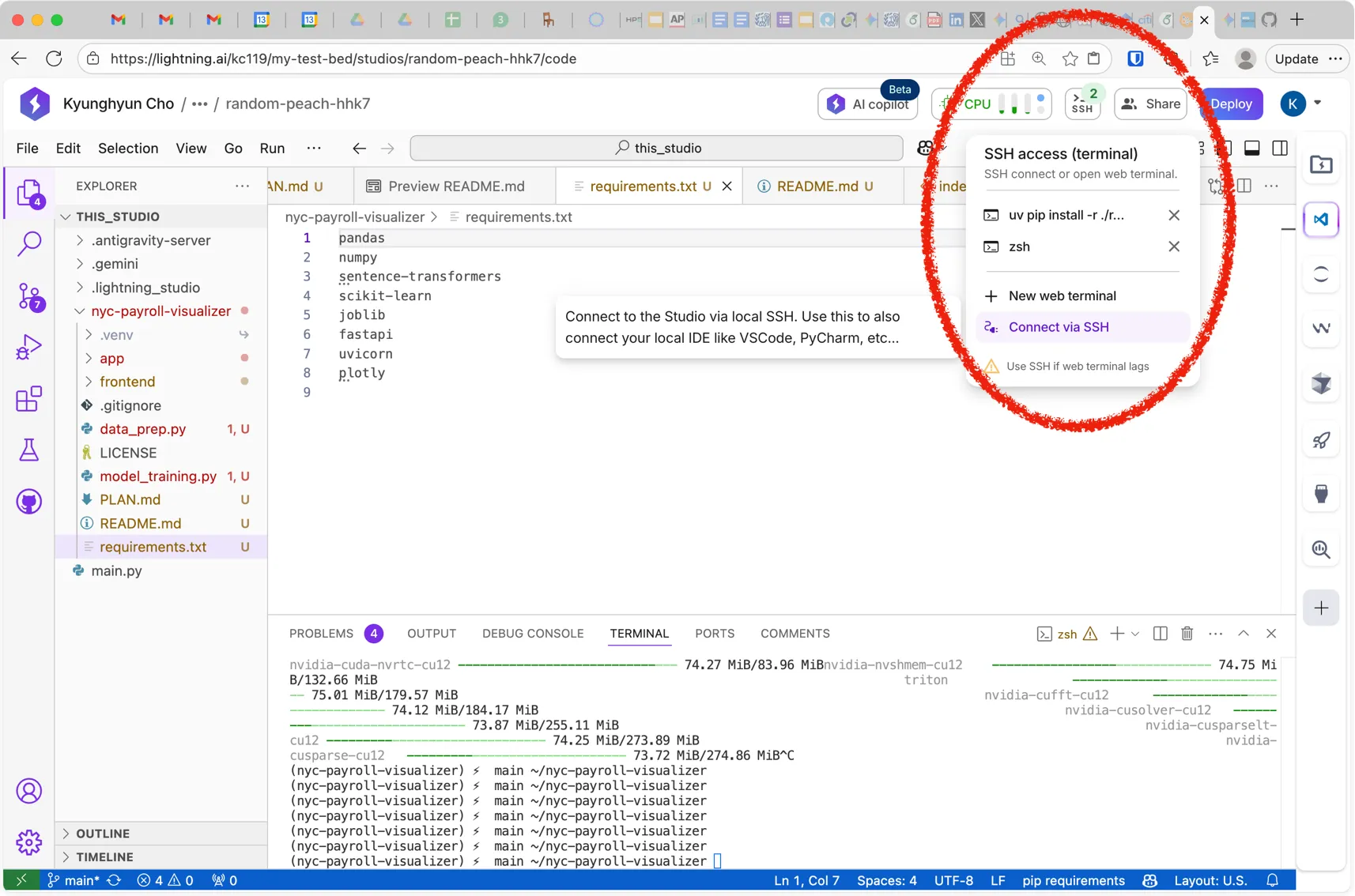
Before you connect to Antigravity you must obtain your ssh key. Obtain the address by hovering your mouse pointer over “SSH” on the top right corner and then clicking “Connect via SSH”.
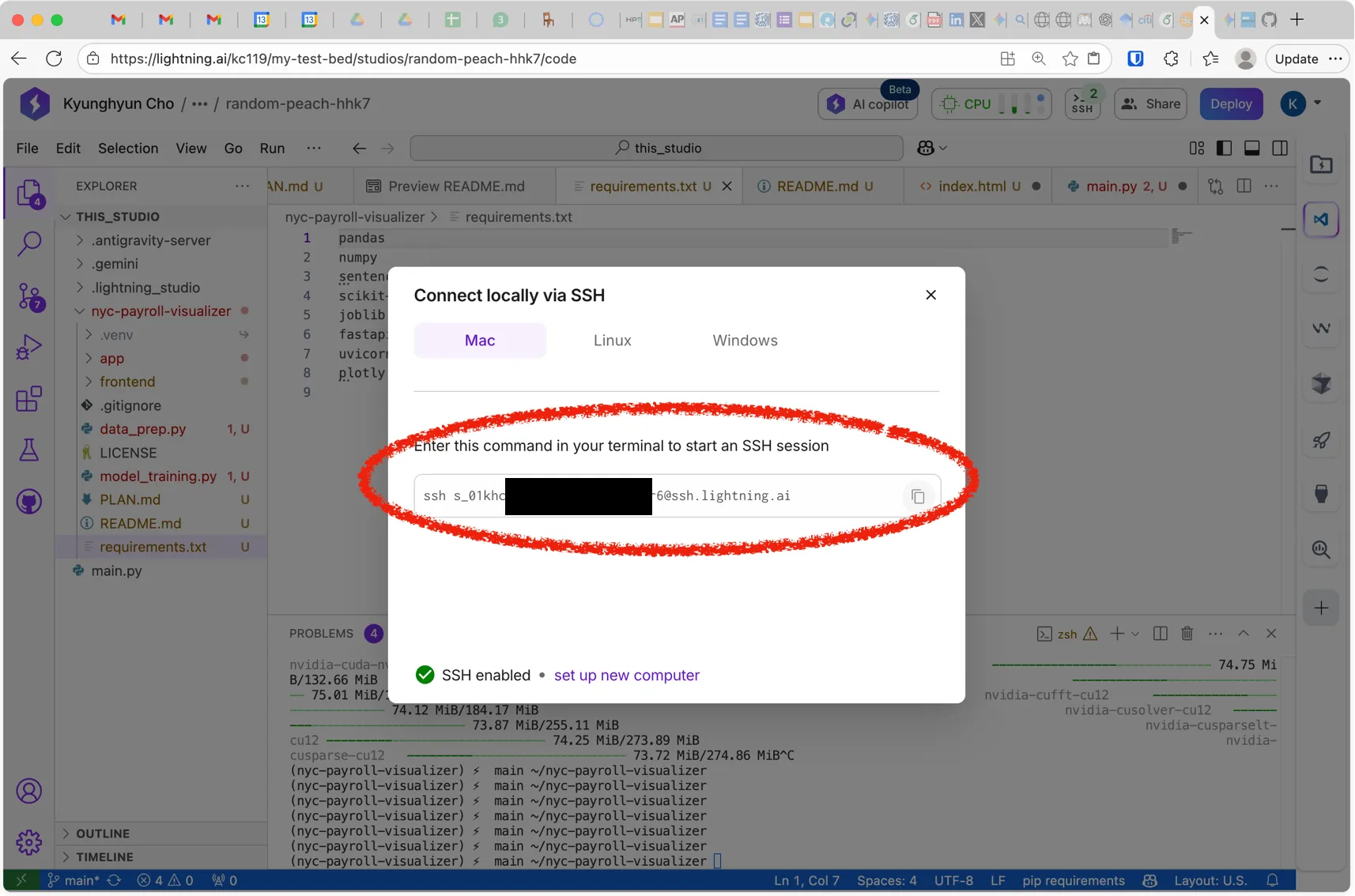
Then, you can get the SSH address.
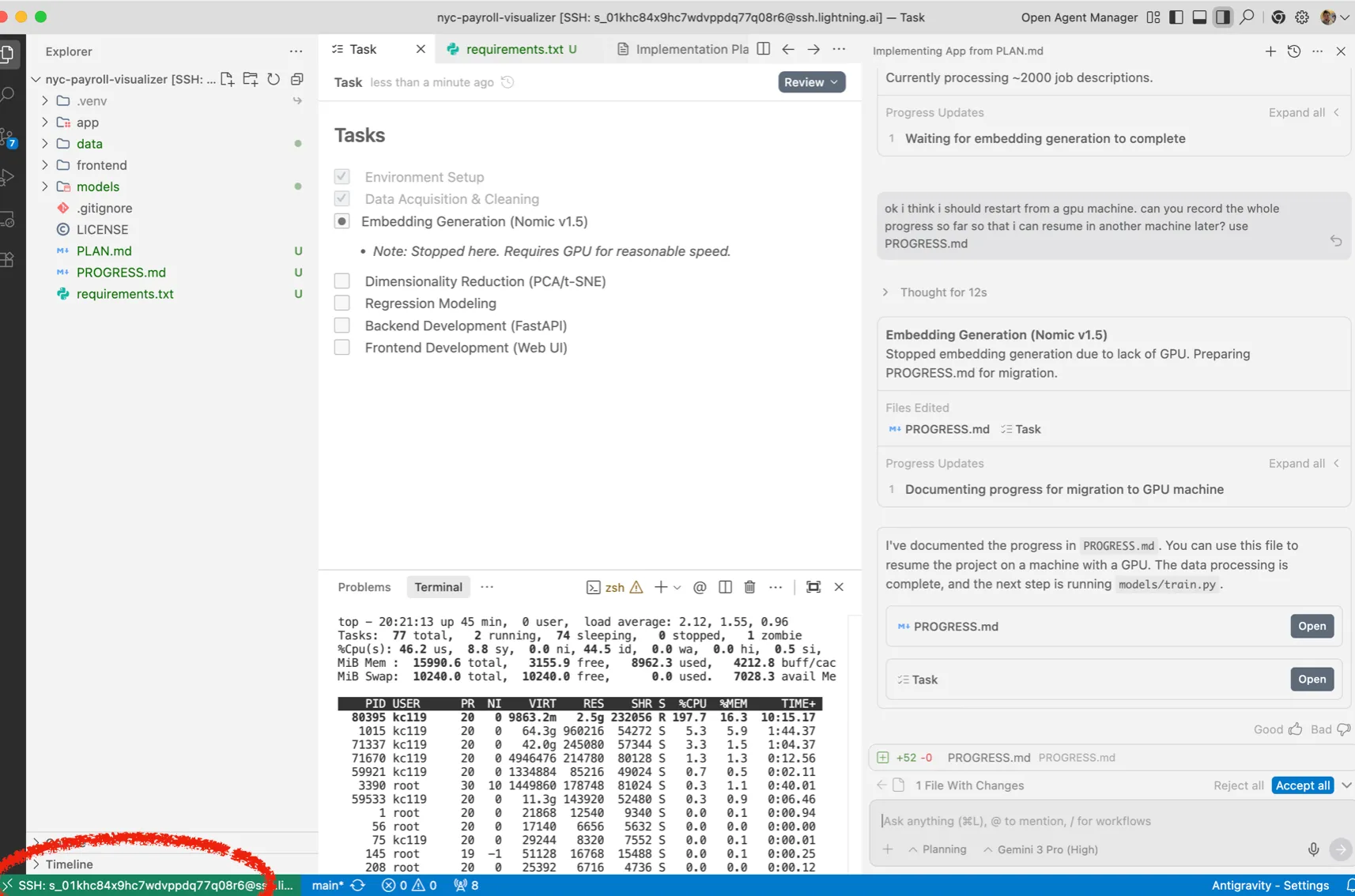
Now, open Antigravity on your own local machine and click the SSH connection icon in the bottom left corner and then click “Connect to SSH Host”
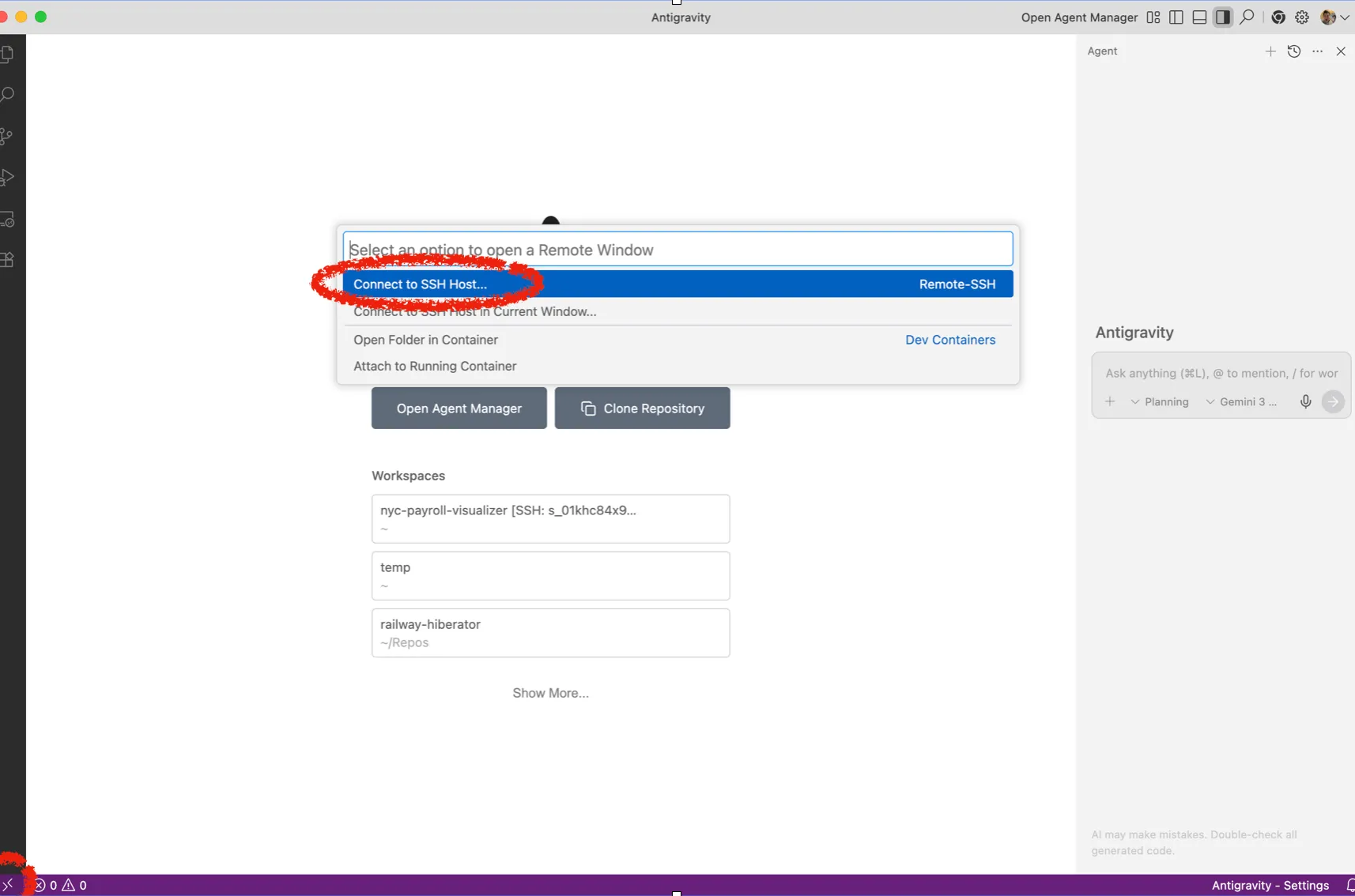
Now, type your SSH address (excluding “ssh” command) and then, from there on, you can use Antigravity as usual (e.g. cloning a Git repository). You can check the SSH status in the bottom left corner, while everything is happening on the lightning studio.
Connect other IDEs
To connect other IDEs, follow the instructions for "remote servers" where you'll have to copy the SSH information the Studio gives you.
Was this page helpful?
Thanks for the feedback.