
Move clouds
Lightning AI makes it trivial to move a Studio across clouds. Moving across clouds lets you find the machines you're looking for and removes cloud lock-in. This guide covers transferring your Studio between cloud providers through the Lightning UI.
Initiate a transfer
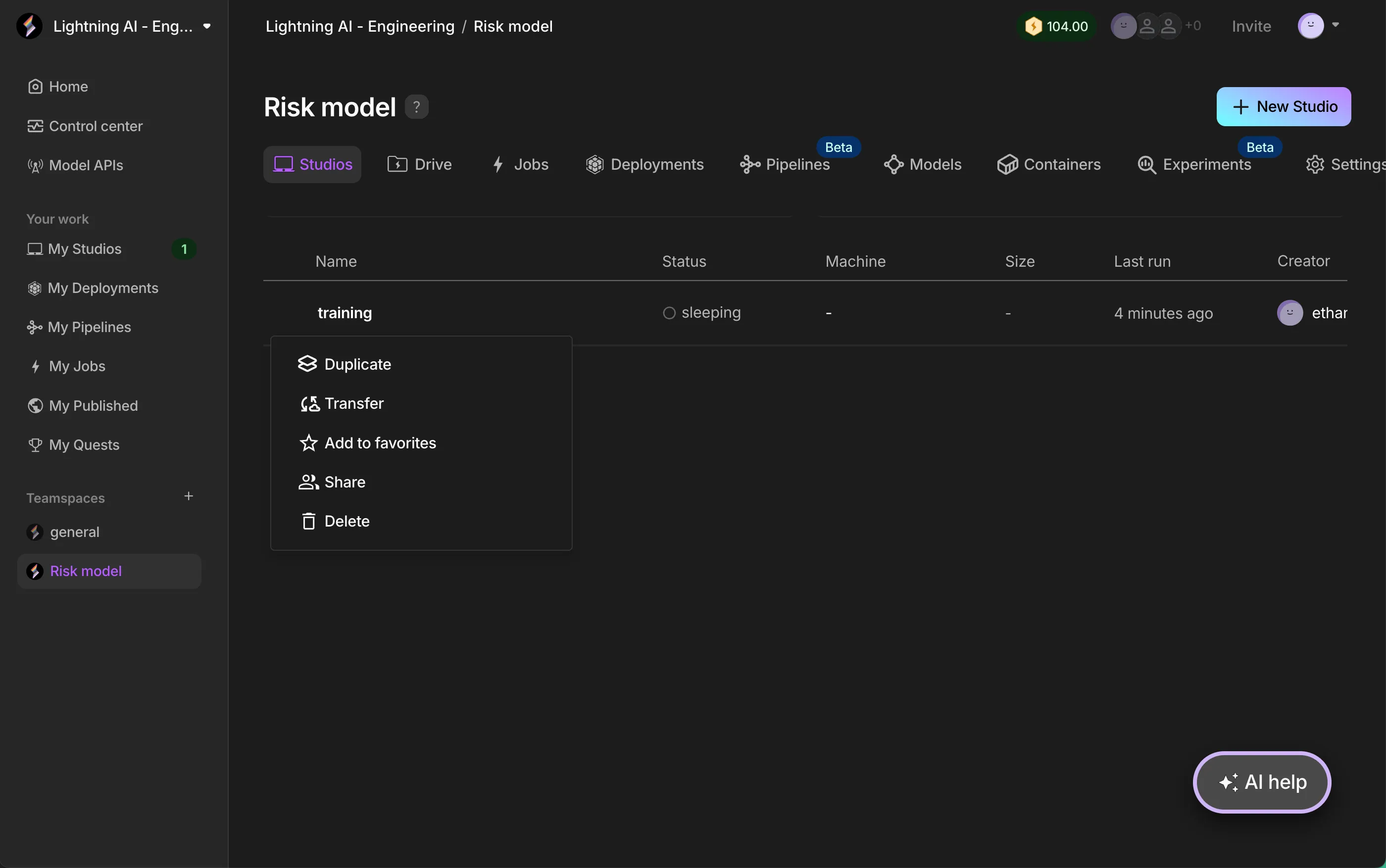
To start, find the Studio you'd like to transfer, hover on the 3 dots to the left of the name and select "Transfer". This will open a menu with the available cloud accounts and providers that you can switch to.
Next, choose the cloud account you'd like to transfer to, confirm that you are happy with the quoted price, and click "Transfer".
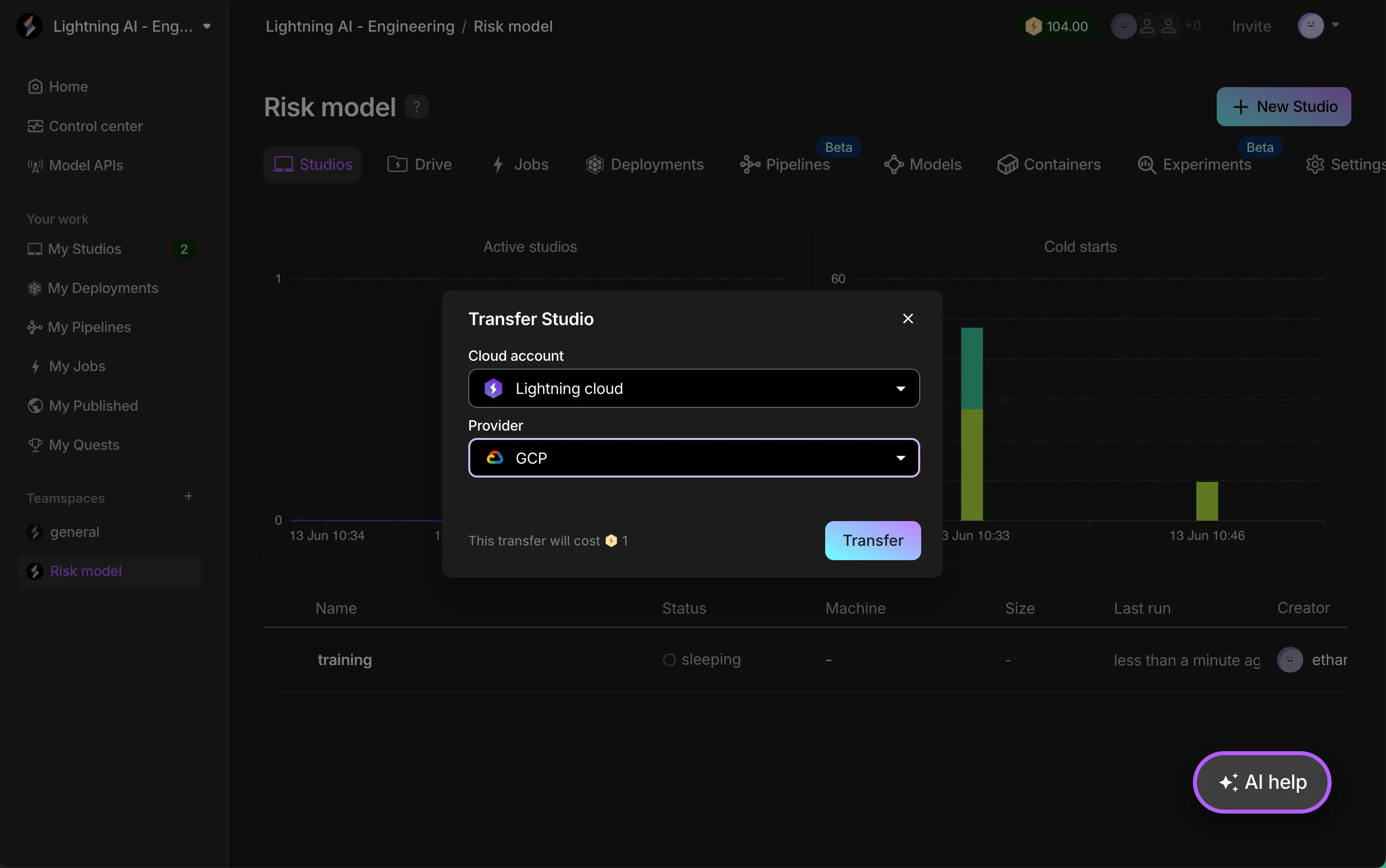
Note: transfers take can take a long time depending on the size of the Studio, please do not stop, edit, or restart the Studio during this time to avoid data loss.
Environment
The full Studio environment will be included in the transfer. This includes:
- the coding environment (Python packages)
- system packages
- the contents of the home directory of the Studio
The following are not included when transferring and will only be accessible from Studios on the original cloud provider:
- Job artifacts
- Connected buckets
For more details, please refer to the step-by-step guide on switching cloud providers.
Cost
Transfer incur a one-time cost that is shown before you submit. The cost depends on the amount of data in the Studio, so delete any data you don't need before transferring.
Was this page helpful?
Thanks for the feedback.