
Custom Docker images
Studios don't require knowledge of Docker. However, in certain production or research use cases, it may be necessary to use custom images with Studios.
Why are images not required?
A Studio environment can be set up interactively or via the SDK. A Studio environment (the files, dependencies, etc.) are persistent just like on your laptop no matter if the Studio is sleeping or using different machines. To tailor the Studio environment, simply install whatever you want, build packages, or make any other customizations to the Studio environment.
Jobs also use the same environment as the Studio that triggers them. There's no additional configuration needed. A job forks everything in the Studio (environment, files, etc.) and creates a non-interactive version that is snapshotted. This is the main way you can think about separating staging from prod or creating production, repeatable workflows.
Methods for using images
There are two ways to use custom Docker images with Studios.
Build images on Studios
Studios can build Docker images. In fact, at Lightning AI we use Studios to build Docker images across our suite of products. Studios already come with Docker installed. Go ahead and type docker help on the terminal to get started!
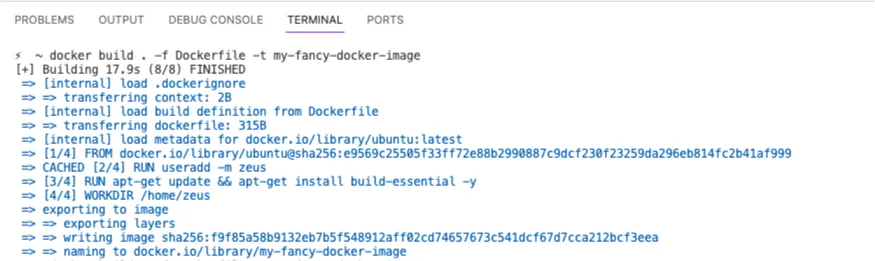
Then, use docker commands just as you would use on your laptop.
docker ps
docker build . -f Dockerfile -t my-fancy-docker-image
Start a Studio from an image
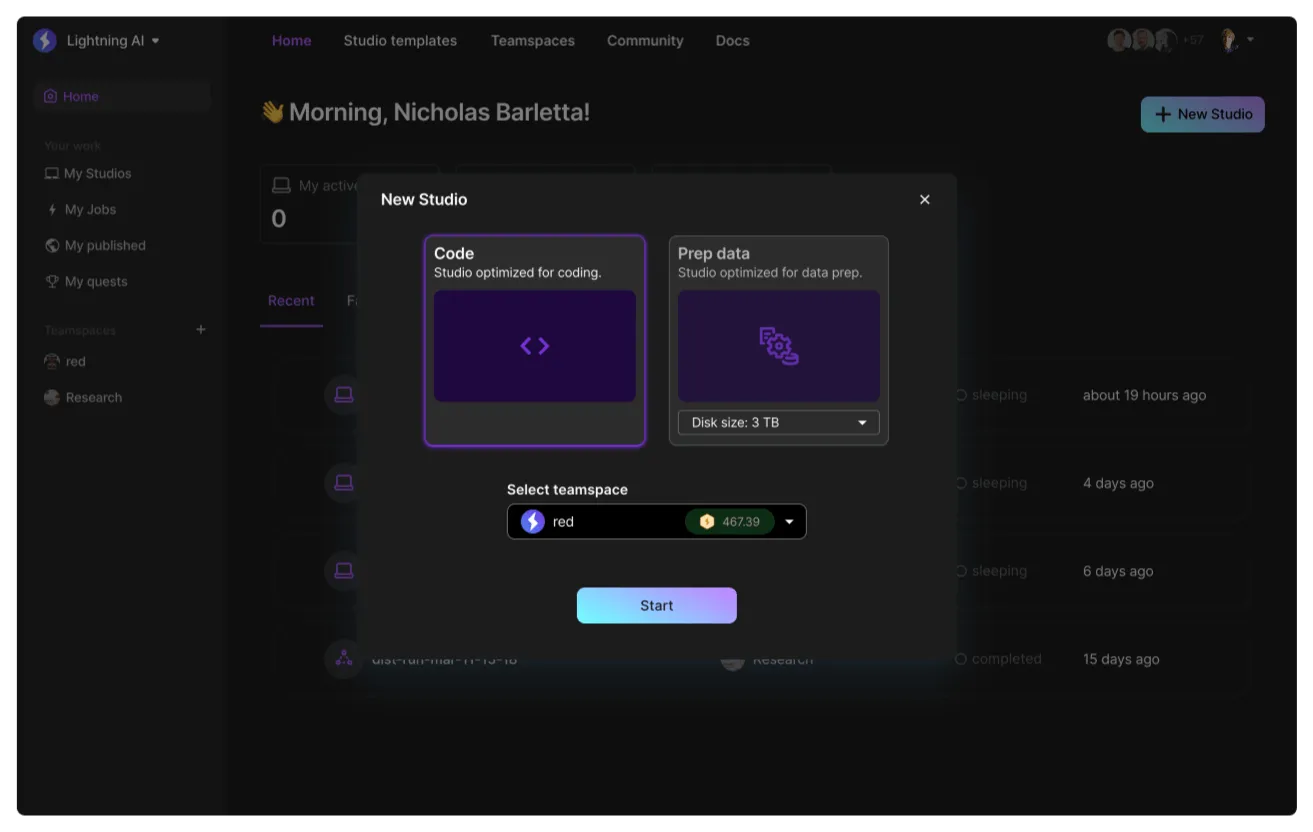
Enterprise customers can configure custom launch images for Studios to start from. Users on the platform will have different options for Studios they can start based on these custom image configurations.
If you'd like to explore this option, get in touch.
Modify the environment manually
This section describes multiple ways to modify the environment manually. Docker is not required to install dependencies, etc... just do what you would do on your laptop.
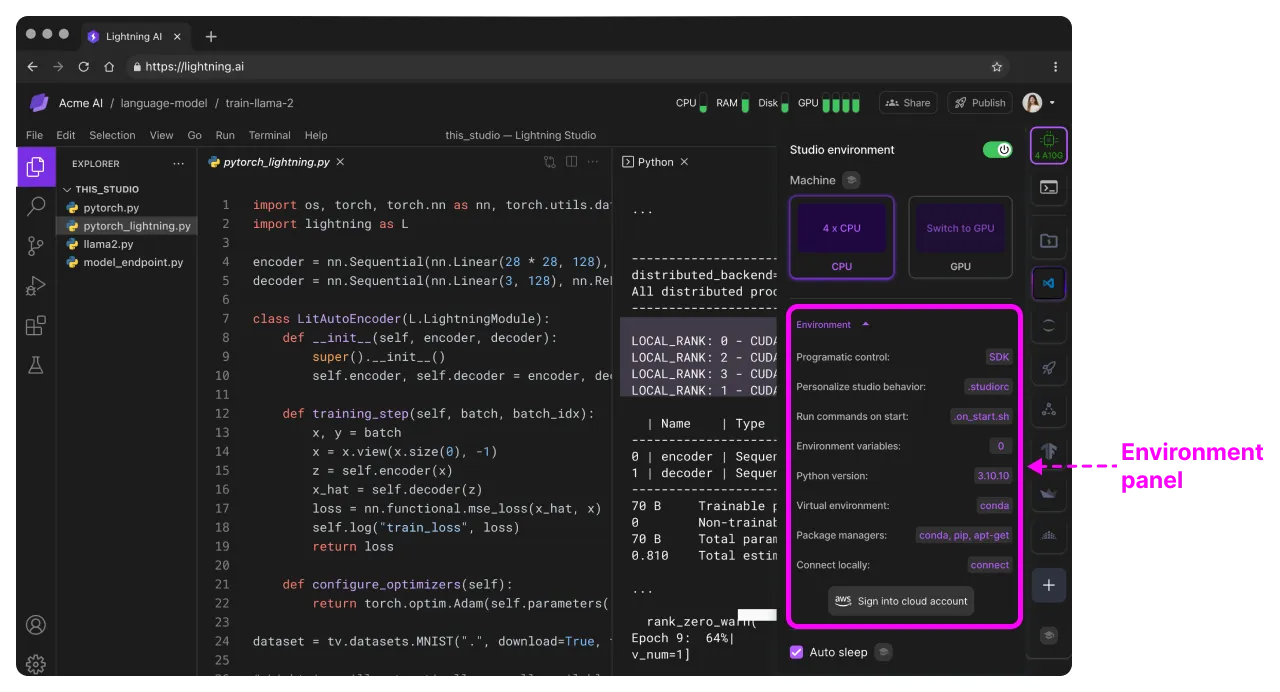
Via environment panel
Open the environment panel on the side of the Studio. This allows you to change Python versions and configure every aspect of the environment.
Via terminal
For advanced control, we recommend you use the the terminal on the Studio or the SDK to make changes programmatically.
An example of using the terminal to change environments
Open source mirrors
Lightning AI can point the install location of libraries to your internal organization mirrors. This means when a user runs something like "pip install pandas", it will install the pandas version approved and scanned inside your organization.
FAQ
Do Docker images persist?
Docker images built within the Studio are not persisted.
To ensure availability, we recommend pushing your images to the Lightning Container Registry (LitCR). You can then re-download them when the Studio starts by adding the necessary pull commands to the on_start.sh script.
I want X-packages pre-installed on Studios
Upgrade to the enterprise tier to get access to custom images you can use to set up templates for your users to start from.
Was this page helpful?
Thanks for the feedback.