
Model registry
Save, load, host, and share models without slowing down training. LitModels minimizes training slowdowns from checkpoint saving. Share public links to models hosted on Lightning AI or on your cloud with enterprise-grade access controls.
✅ Checkpoint without slowing training. ✅ Load models anywhere.
✅ Granular RBAC and permissions.
✅ Secure - host on our cloud or yours.
Overview
Upload models from your browser, command line (CLI), or via code with Python scripts. Your model can be a single file or a nested folder containing multiple files.
- Browse, upload, and download your models from the browser
- Interact with your models directly from the command line, convenient for larger models
- Manage your models via code, designed for model training and inference
Via the UI
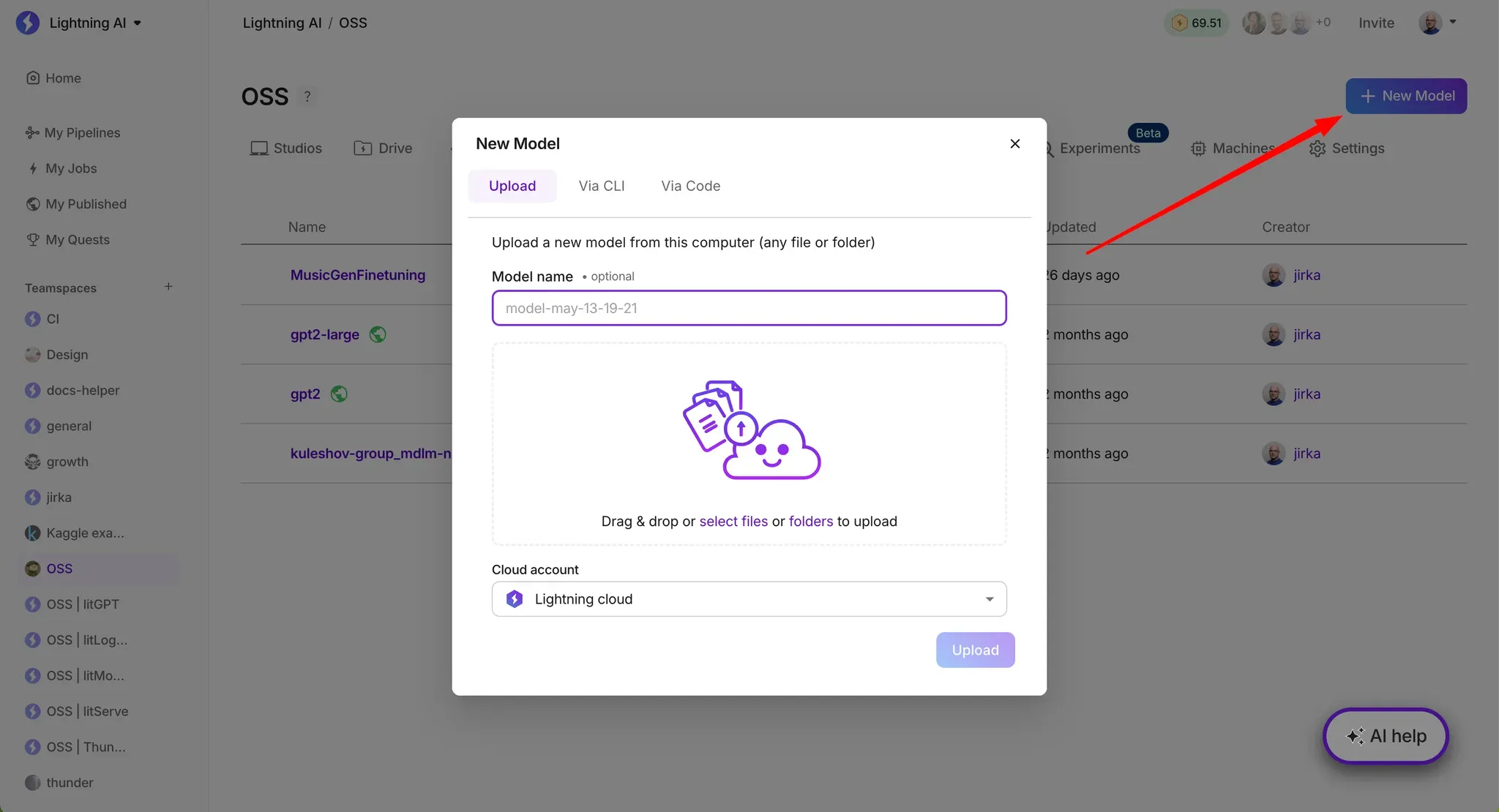
- Upload the model in the browser by going to the Model tab in your teamspace and clicking the "New Model" button in the top right. This opens a dialog with three options: first, you can drag and drop files directly into the window, set your model name, and click "Upload" to finish. The other two options provide code snippets for uploading models via command line and Python code.
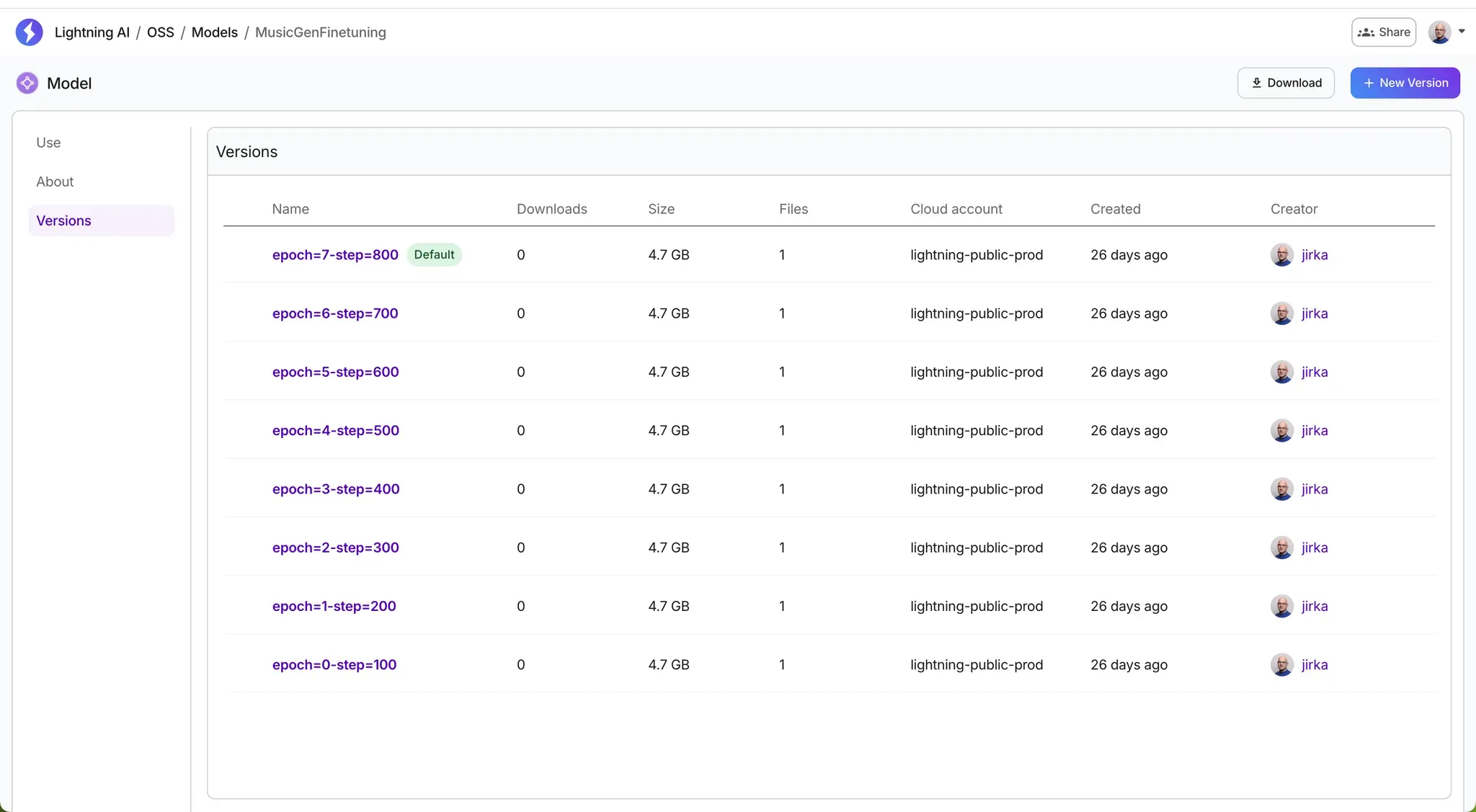
- Browse your models and versions. In the teamspace, select the Models tab to view all models within that teamspace. Click any model name to open a new page with the model's menu on the left side, showing usage instructions, additional model information, and a table listing all model versions with basic metadata and action options. When you click a model version, you'll go to another page showing version details and all files associated with that model version.
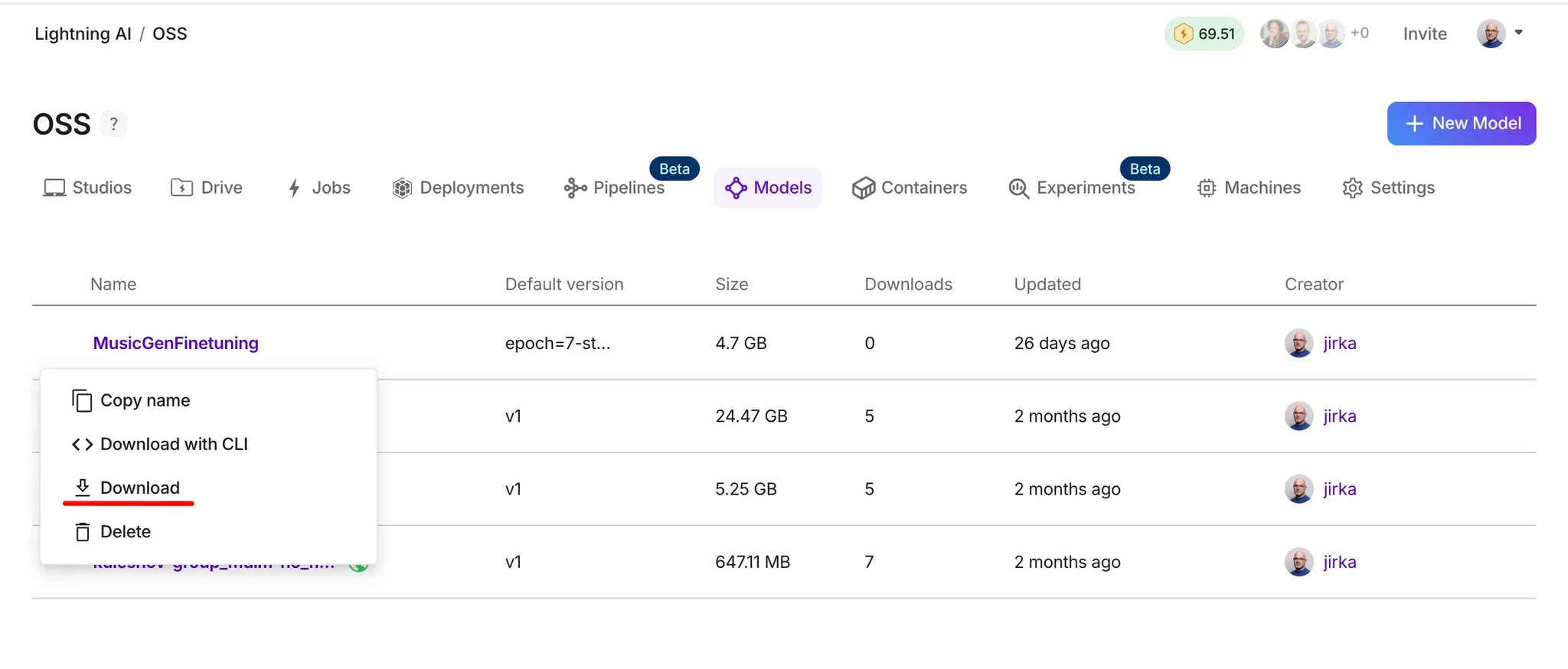
- Download a model or version in the browser. This action option is linked to either the model name or version name. In the initial Model list view, clicking Model Download will get you the default model version. When you open the Model's versions view, you can download any specific version. Additionally, the model detail page has a button in the top right to download the default version, while the Model version page has a similar button for downloading that particular version.
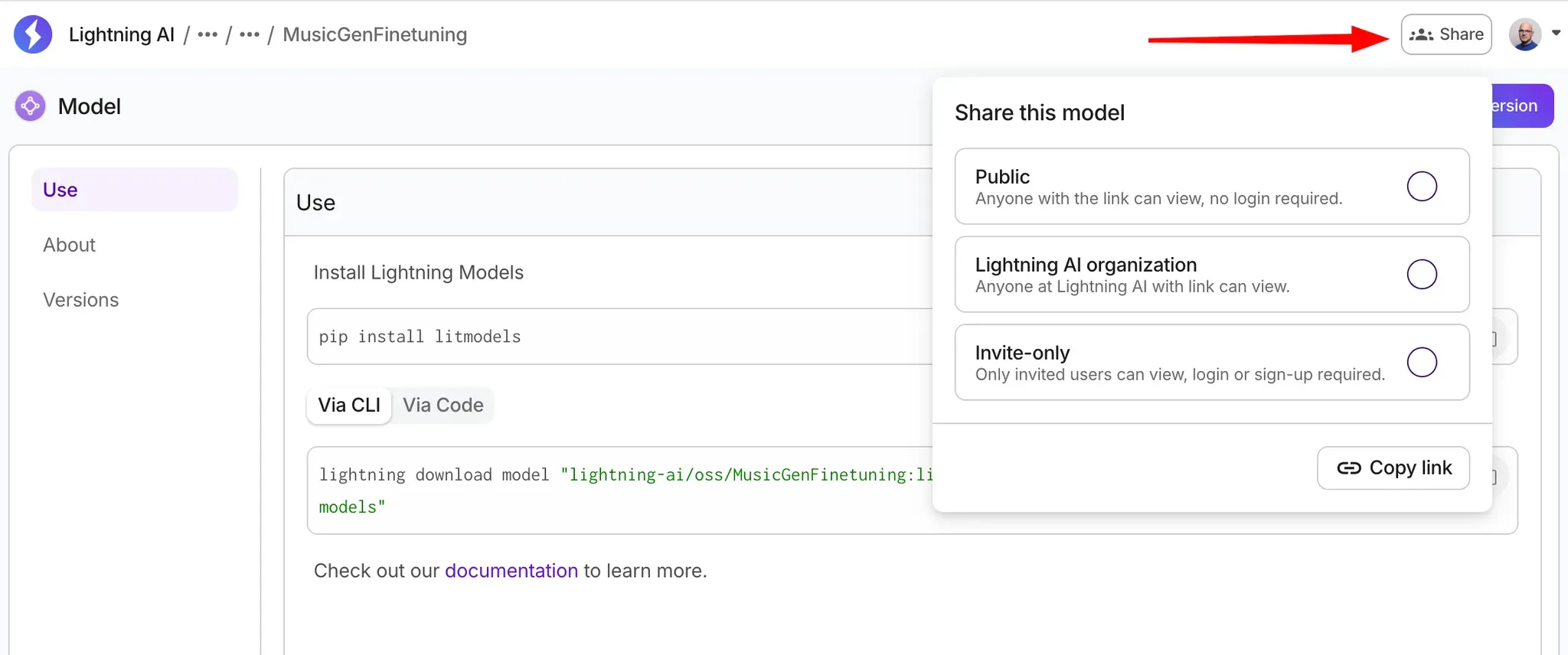
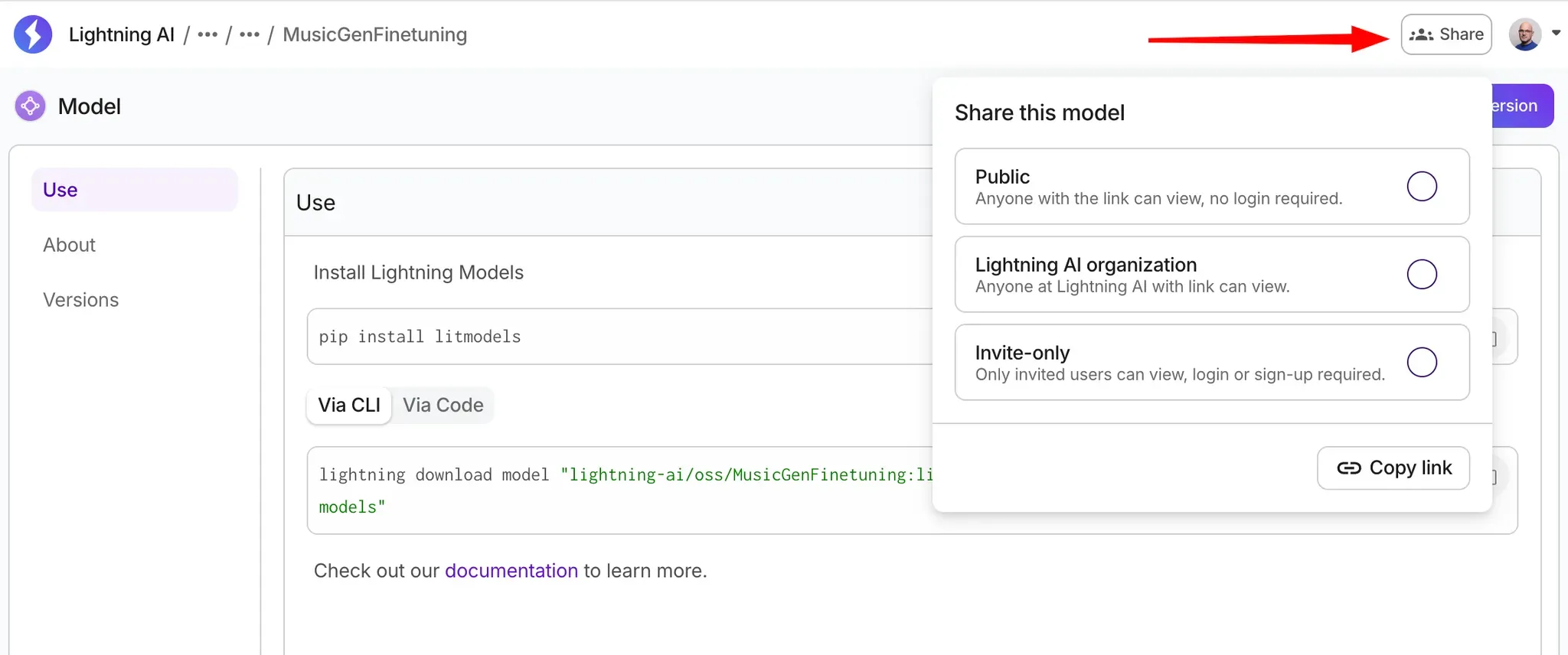
- Share your model. You can share an entire model with all existing versions, or choose to share just a specific version. This option is available on the model detail page in the top-right corner via the "Share" button. Clicking this button opens a new dialog with three sharing options:First is public sharing, allowing anyone with a Lightning AI account to view and download the model. Second is organization-wide sharing, enabling anyone in your organization across all teamspaces to view and download the model. The third option lets you share the model with specific users by entering their Lightning AI username or email address. If you add a user with an email address who isn't yet a Lightning AI user, they will receive an invitation email. Note that these three sharing options are mutually exclusive and cannot be combined.
Via Lightning CLI
First, install the SDK by running
pip install lightning-sdkTo create a model or work with an existing model, the name is formatted as ORG/TEAMSPACE/model-name:version, where "ORG" is your organization name or username. The TEAMSPACE is separated by a forward slash (/), and the model name and optional version are separated by a colon (:).
Create a new model or upload a new version of an existing model with
lightning model upload \
    "ORG/TEAMSPACE/my_model" \
    --path=checkpoint.pt
Download the default model version
lightning model download \
    "ORG/TEAMSPACE/my_model" \
    --download_dir="my-models"
or a specific version of the model
lightning model download \
    "ORG/TEAMSPACE/my_model:the-version" \
    --download_dir="my-models"
Via Code
The model registry can be accessed through litmodels package. Install it by running:
pip install litmodelsThe model name notation is the same as for CLI. The model name is composed of ORG/TEAMSPACE/model-name:version, where "ORG" is your organization name or username. The TEAMSPACE is separated by a forward slash (/), and the model name and optional version are separated by a colon (:). If you are running in Lightning Studio, you can omit the ORG/TEAMSPACE as it will be automatically sourced from the running studio, so you can simply use model-name:version.
Save a model
Upload a model checkpoint to the registry by adding this code to ANY Python code:
import litmodels

# Define your model
model = litmodels.demos.BoringModel()

litmodels.save_model(
    name="ORG/TEAMSPACE/my-model",
    model=model,
)
The upload method has two required arguments:
- name: Name tag of the model to upload. Must be in the format org/teamspace/modelname where org is the name of an organization and teamspace you are part of.
- model: A Python object. LitModels performs smart model type determination and assigns the appropriate file extension.
Load a model
The model can be downloaded and loaded as an object by passing the name you supplied during upload. LitModel will instantiate the model with the correct type based on the file extension:
import litmodels

model = litmodels.load_model("ORG/TEAMSPACE/my-model")
Upload and download a model
Models can also be easily uploaded once they are already saved to a file or multiple files by uploading a whole nested folder with unlimited depth and number of files.
import os, litmodels

# Create a checkpoint folder
os.makedirs("./my_model")
open("./my_model/state_dict.pt", "w").write("model weights")
open("./my_model/hparams.json", "w").write("hyperparameters")
open("./my_model/cache", "w").write("cache file")

# Upload the folder
litmodels.upload_model(name="ORG/TEAMSPACE/my-model", model="./my_model")

# Download the folder
litmodels.download_model("ORG/TEAMSPACE/my-model", download_dir="model_dir")

print(os.listdir("./model_dir"))  # ['state_dict.pt', 'hparams.json', 'cache']
If you need to cherry-pick specific files from multiple locations or folders, you can specify them
import os, litmodels

# Create a checkpoint folder
os.makedirs("./my_model")
open("./README.md", "w").write("about")
open("./my_model/state_dict.pt", "w").write("model weights")
open("./my_model/cache", "w").write("cache file")

# Upload the specific files
litmodels.upload_model_files(
		name="ORG/TEAMSPACE/my-model",
		path=["./my_model/state_dict.pt", "README.md"],
)

# Download the folder
litmodels.download_model("ORG/TEAMSPACE/my-model", download_dir="model_dir")

print(os.listdir("./model_dir"))  # ['state_dict.pt', 'README.md']
Model versions for uploads
Every time a model is uploaded, it will create a new version so it never accidentally overwrites a previous model checkpoint. Automatic versioning starts at v1 and increment as v2, v3, v4, etc. The new version tag always gets returned from the upload function:
import litmodels

open("./model.pt", "w").write("model weights")

model_meta = litmodels.upload_model(
    name="ORG/TEAMSPACE/llama-finetuned", model="./model.pt")
print(model_meta.version)
A custom version can be set for model upload as follows:
import litmodels

open("./model.pt", "w").write("model weights")

model_meta = litmodels.upload_model(
    name="ORG/TEAMSPACE/llama-finetuned:the-best", model="./model.pt")
print(model_meta.version)  # the-best
Various download options
When you download a model with the model name only, the default version is downloaded. This default version is naturally the last upload unless a user selects a specific version to be the default one. In such case, the default no longer follows the latest version and remains fixed until the user sets the latest as default again.
For the sample below, assume the user runs the script in a studio in the same teamspace where they want to download the model, so we omit the organization and teamspace from the name.
import litmodels

# 1. Create a checkpoint and upload it
open("./llama.pt", "w").write("weights v1")
litmodels.upload_model(name="llama-finetuned", model="./llama.pt")

# 2. Update the checkpoint contents and upload again
open("./llama.pt", "w").write("weights v2")
litmodels.upload_model(name="llama-finetuned", model="./llama.pt")

# Download the default version, which is the latest, v2
litmodels.download_model("llama-finetuned")

# Download a specific version
litmodels.download_model("llama-finetuned:v1")
RBAC and permissions
The model registry follow’s the same permissions structure as the rest of the platform. Models are shared to the teamspace, by default. Additionally, share with individuals, the entire organization, or anyone with the link.
Examples
PyTorch
Save model:
import torch
from litmodels import save_model

model = torch.nn.Module()
save_model(model=model, name="your_org/your_team/torch-model")
Load model:
from litmodels import load_model

model_ = load_model(name="your_org/your_team/torch-model")
PyTorch Lightning
Save model:
from lightning import Trainer
from litmodels import upload_model
from litmodels.demos import BoringModel

# Configure Lightning Trainer
trainer = Trainer(max_epochs=2)
# Define the model and train it
trainer.fit(BoringModel())

# Upload the best model to cloud storage
checkpoint_path = getattr(trainer.checkpoint_callback, "best_model_path")
# Define the model name - this should be unique to your model
upload_model(model=checkpoint_path, name="<organization>/<teamspace>/<model-name>")
Load model:
from lightning import Trainer
from litmodels import download_model
from litmodels.demos import BoringModel

# Load the model from cloud storage
checkpoint_path = download_model(
    # Define the model name and version - this needs to be unique to your model
    name="<organization>/<teamspace>/<model-name>:<model-version>",
    download_dir="my_models",
)
print(f"model: {checkpoint_path}")

# Train the model with extended training period
trainer = Trainer(max_epochs=4)
trainer.fit(BoringModel(), ckpt_path=checkpoint_path)
TensorFlow / Keras
Save model:
from tensorflow import keras
from litmodels import save_model

# Define the model
model = keras.Sequential([
   keras.layers.Dense(10, input_shape=(784,), name="dense_1"),
   keras.layers.Dense(10, name="dense_2"),
])

# Compile the model
model.compile(optimizer="adam", loss="categorical_crossentropy")

# Save the model
save_model("lightning-ai/jirka/sample-tf-keras-model", model=model)
Load model:
from litmodels import load_model

model_ = load_model(
    "lightning-ai/jirka/sample-tf-keras-model", download_dir="./my-model"
)
SKLearn
Save model:
from sklearn import datasets, model_selection, svm
from litmodels import save_model

# Load example dataset
iris = datasets.load_iris()
X, y = iris.data, iris.target

# Split dataset into training and test sets
X_train, X_test, y_train, y_test = model_selection.train_test_split(
    X, y, test_size=0.2, random_state=42
)

# Train a simple SVC model
model = svm.SVC()
model.fit(X_train, y_train)

# Upload the saved model using litmodels
save_model(model=model, name="your_org/your_team/sklearn-svm-model")
Use model:
from litmodels import load_model

# Download and load the model file from cloud storage
model = load_model(
    name="your_org/your_team/sklearn-svm-model", download_dir="my_models"
)

# Example: run inference with the loaded model
sample_input = [[5.1, 3.5, 1.4, 0.2]]
prediction = model.predict(sample_input)
print(f"Prediction: {prediction}")
Integrations
For seamless integration of Model Registry into your existing workflow, you can use any of the following simple code replacements which are fully compatible.
PyTorch Lightning Callback
Streamline your training process with an automatic callback that uploads model checkpoints after each epoch. This offers background uploading which significantly reduces model saving overhead compared to other solutions.
import torch.utils.data as data
import torchvision as tv
from lightning import Trainer
from litmodels import download_model
from litmodels.integrations import LightningModelCheckpoint
from lightning.pytorch.demos.boring_classes import BoringModel

# configure Trainer with custo checkpointing
trainer = Trainer(
    max_epochs=2,
    callbacks=[LightningModelCheckpoint(model_registry="my-model")],
)
# train the model for limted time
trainer.fit(BoringModel())

# Load the model from cloud storage
model_path = download_model(name="my-model", download_dir="my_models")
print(f"model: {model_path}")

# Train the model with an extended training period
trainer = Trainer(max_epochs=4)
trainer.fit(
    BoringModel(),
    ckpt_path=model_path,
)
PyTorch Lightning Trainer extension
In addition to the previous extended Lightning callback, we have integrated it into the training workflow so that checkpoints are automatically saved to the registry by setting the Trainer argument model_registry using common model name notation. The version is set as the model checkpoint name to simplify navigation and maintain user expectations as close to the local experience as possible.
from lightning import Trainer
from lightning.pytorch.demos.boring_classes import BoringModel


trainer = Trainer(
    max_epochs=2,
    model_registry="ORG/TEAMSPACE/lit-boring-demo",
)
trainer.fit(BoringModel())
Training can be simply resumed from a model stored in the registry using either the default/last version or a specific one. In this case, the notation separates the model name and version with keywords registry and version.
trainer.fit(
    BoringModel(),
    ckpt_path="registry"
    #ckpt_path="registry:version:v5"
    #ckpt_path="registry:lightning-ai/litmodels/lit-boring-demo2"
    #ckpt_path="registry:lightning-ai/litmodels/lit-boring-demo2:version:v123"
)
Here are examples of checkpoint paths:
ckpt_path="registry"loads the model specified in Trainer's model_registry with its default versionckpt_path="registry:version:v5"loads the model specified in Trainer's model_registry with version v5ckpt_path="registry:lightning-ai/litmodels/lit-boring-demo2"loads the specified demo2 model with its default versionckpt_path="registry:lightning-ai/litmodels/lit-boring-demo2:version:v123"loads the specified demo2 model with version v123
The same attribute we introduced for Trainer fit can be used also for using uploaded models with validate, test and predict.
Save any Python class as a checkpoint
Mixin classes simplify model management in Python by providing reusable features like saving and loading, which creates consistent and maintainable code across multiple models.
Save model:
from litmodels.integrations.mixins import PickleRegistryMixin


class MyModel(PickleRegistryMixin):
    def __init__(self, param1, param2):
        self.param1 = param1
        self.param2 = param2
        # Your model initialization code
        ...


# Create and push a model instance
model = MyModel(param1=42, param2="hello")
model.upload_model(name="my-org/my-team/my-model")
Load model:
loaded_model = MyModel.download_model(name="my-org/my-team/my-model")Save custom PyTorch models
Mixin classes simplify serialization by centralizing the logic, reducing duplicate code and ensuring consistent model storage across projects. The download_model method bypasses constructor arguments and rebuilds the model directly from the registry with its architecture and weights intact—avoiding setup conflicts.
Save model:
import torch
from litmodels.integrations.mixins import PyTorchRegistryMixin


# Important: PyTorchRegistryMixin must be first in the inheritance order
class MyTorchModel(PyTorchRegistryMixin, torch.nn.Module):
    def __init__(self, input_size, hidden_size=128):
        super().__init__()
        self.linear = torch.nn.Linear(input_size, hidden_size)
        self.activation = torch.nn.ReLU()

    def forward(self, x):
        return self.activation(self.linear(x))


# Create and push the model
model = MyTorchModel(input_size=784)
model.upload_model(name="my-org/my-team/torch-model")
Use the model:
loaded_model = MyTorchModel.download_model(name="my-org/my-team/torch-model")LitServe
Use the model registry together with LitServe to download the weights for serving. For this example, first upload a model checkpoint:
import litgpt
import litmodels

# Download a LitGPT checkpoint
litgpt.LLM.load("EleutherAI/pythia-70m")

# Upload the checkpoint to the model registry
litmodels.upload_model(
    model="checkpoints/EleutherAI/pythia-70m",
    name="ORG/TEAMPACE/pythia-70m",
)
And then in the server code, download the checkpoint from the registry and use it:
import litgpt
import litserve as ls
import litmodels

class SimpleLitAPI(ls.LitAPI):
    def setup(self, device):
        # Replace ORG with the name of the organization
        checkpoint_path = litmodels.download_model("ORG/TEAMPACE/pythia-70m")
        self.llm = litgpt.LLM.load(checkpoint_path)

    def decode_request(self, request):
        return request["prompt"]

    def predict(self, prompt):
        return self.llm.generate(prompt, max_new_tokens=200)

    def encode_response(self, output):
        return {"output": output}

if __name__ == "__main__":
    api = SimpleLitAPI()
    server = ls.LitServer(api)
    server.run(port=8000)
Was this page helpful?
Thanks for the feedback.