
Manage members
Understand how to navigate member management within a teamspace, roles, adding, removing, and transferring work between members.
Roles in a Teamspace
Teamspaces have three core roles: admins, members, and guests, each with distinct permissions and capabilities.

Admins
Teamspace and organization administrators can manage members within a teamspace. Their abilities include:
- Adding or removing members.
- Customizing members' access permissions.
Members
Members are part of the organization. Members can create teamspaces, Studios and more. Use guest invitations for external collaboration.
Invite members
To invite a member, click "Invite" at the top right
Add members to your teamspace.
Should the invitee lack a Lightning AI account, they'll be prompted to create one. If the members encounter verification issues, please reach out on our Discord (link here).
Remove members
Navigate to teamspace settings > Member, click the 3-dot menu next to the member's name, and choose to remove them. A disabled access icon appears for members with restricted platform access. Removed members leave their data and Studios intact.
Note: Future updates will enable transferring resource ownership to a new owner.
Remove members from your teamspace.
Guests
Guests are not part of the organization. They are only part of the teamspace they were invited to.
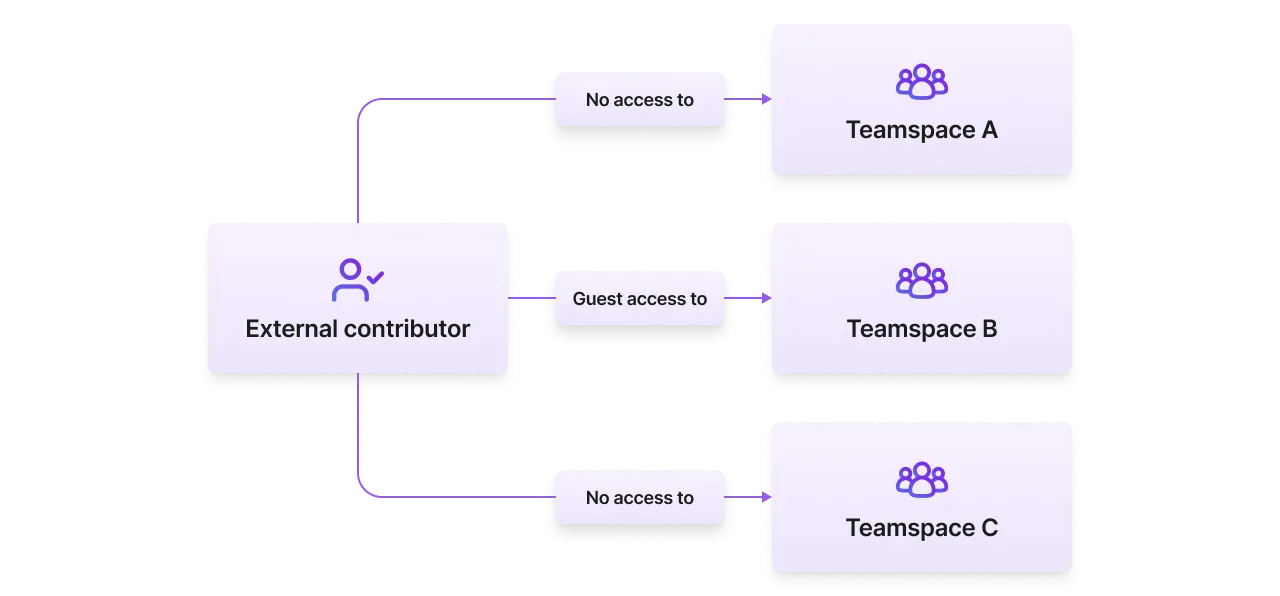
Invite guests
To invite a member, click "Invite" at the top right. Only teamspace admins can invite guests. Admins can enable or disable this capability by going to Org setting > Settings > Teamspace.
Invite guests to your teamspace.
Remove guests
To remove guests, go to teamspace settings > Member. Next, click the 3 dots menu on the left of the row and then remove them from the teamspace. If a member's access to the platform is disabled, you will see a disabled access icon. After a member is removed, their data and Studios will remain.
Remove guests from your teamspace.
As another option, you can delete a Guest at the Organization level, where they will be listed as a Guest of the organization.
Remove guests from the org level.
Transfer work
When a member is removed from a teamspace there are two options. Option 1 is to become a guest to continue collaborating from outside the org. Option 2 is transfer their work to someone else. A teamspace admin must initiate the transfer.
If the new owner wasn't initially part of the teamspace, they'll be added.
If the removed user was an admin, the new owner becomes the admin.
Was this page helpful?
Thanks for the feedback.