
Manage members
Learn how to navigate member management at the organizational level, ensuring your team has the right access, permissions, and resources.
Organization members
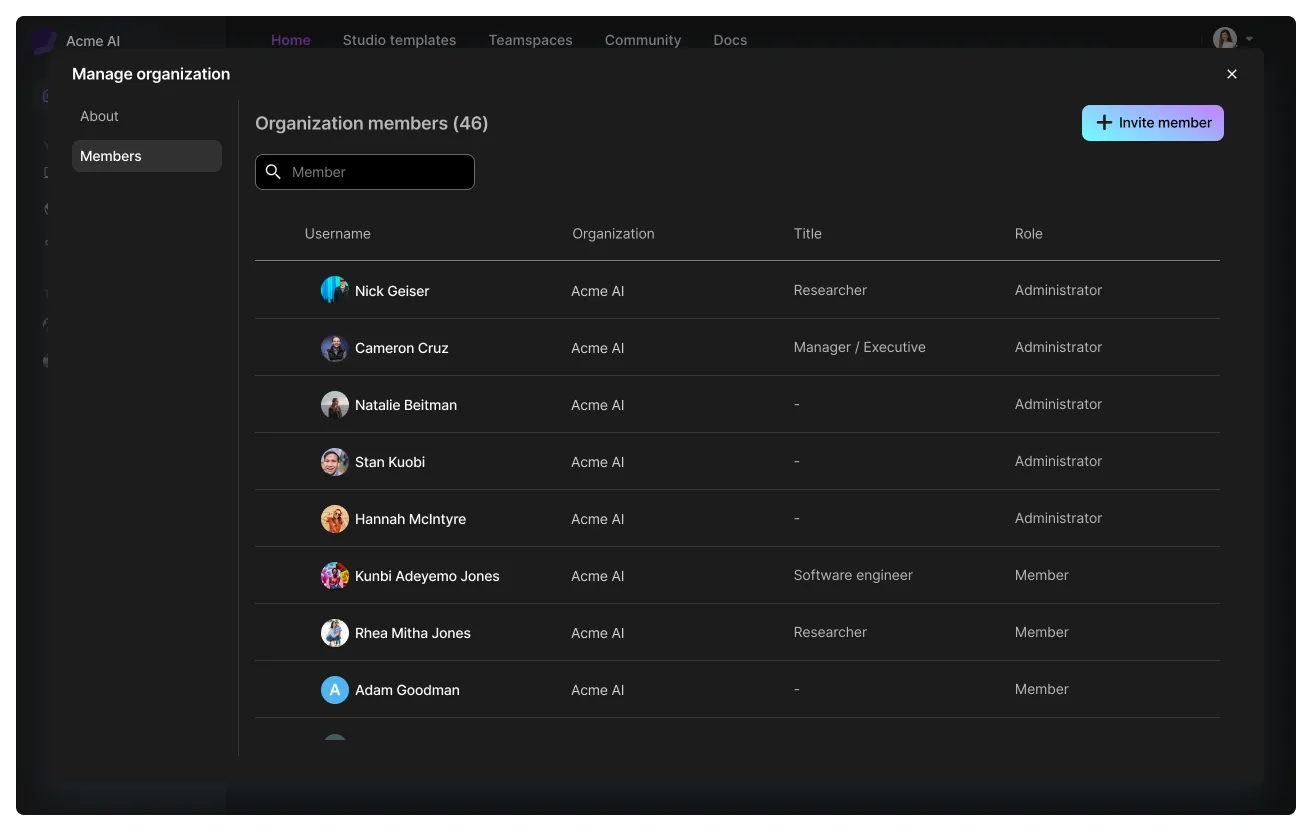
An organization member has full privileges in the organization. Members can create teamspaces, request access to teamspaces, create Studios, browse and run templates, and more. Members take up one billing seat.
Add members
To add a member, go to Org settings > Members > '+ Invite member':
Add a member to your org from org settings.
Adding a member to the organization does not automatically include them in teamspaces. Make sure to also invite them to the specific teamspaces they need to access to.
Remove members
To remove a member, delete them from the organization. The member will be disconnected from all teamspaces. When a member loses access to the platform, a disabled icon becomes visible.
Delete members from organization to remove their access to teamspaces.
Transfer a removed member's work (coming soon)
When a member leaves an org or is removed, they can either be granted guest access to their teamspace for continued collaboration or their work can be transferred to another member. If the new owner wasn't initially part of the teamspace, they'll be added. If the removed user was an admin, the new owner becomes the admin. Inactive members who leave still leave behind their Studios and teamspaces, which can be transferred to a new owner by organization admins.
Organization admins can subsequently remove the inactive member, transferring all of their Studios and teamspaces to a new owner.
Organization guests
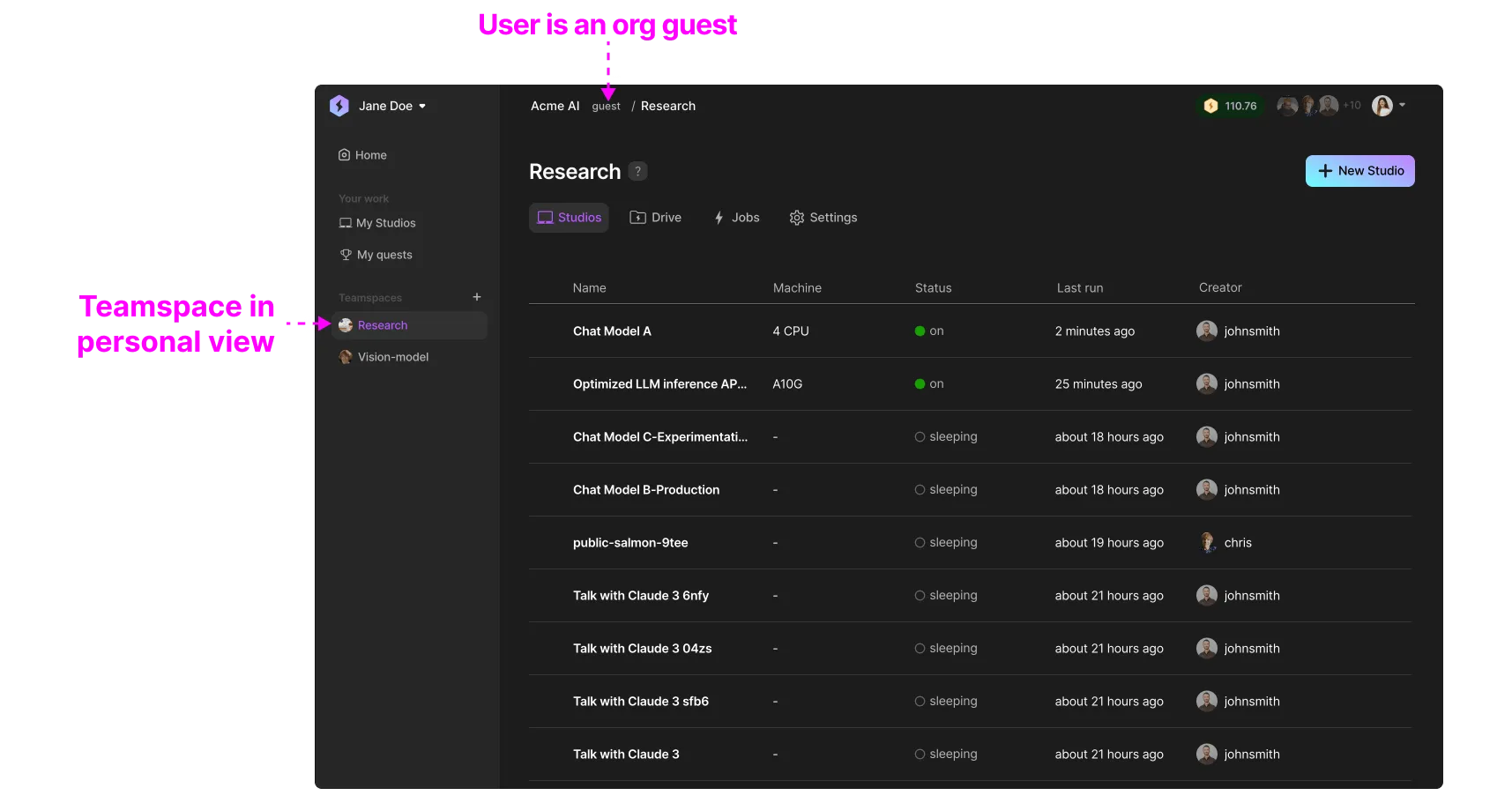
Guests have limited visibility, they can only see teamspaces they're specifically added to. They cannot view the entire organization or access the Organizations Library. Teamspaces they are a part of show up in their personal account view.
Invite guests
Guests can be invited into a teamspace from the member settings. Only admins can invite members. All members will be able to create Studios, run Jobs, and add data.
Remove guests
Guests can be removed from a teamspace using the member settings. Only admins can remove guests. The removed guests work will be transfered to not lose any of the work conducted (coming soon!).
Manage permissions
With Lightning AI organizations, you can define access controls through default and custom roles. Refer to our comprehensive guide to understand how role-based access controls (RBAC) can be tailored to your organization's needs.
Was this page helpful?
Thanks for the feedback.