
Environment variables
Environment variables allow you to customize a program's behavior at runtime without needing to hard-code values. Use them to manage aspects like file paths, system configurations, and user preferences.
Via terminal
The simplest way to set an environment variable is to open a Studio terminal and do what you do on your laptop.
export HEADLESS=1
export IDE="Lightning AI Studio"
Via the Studio Environment
The Studio environment allows you to set the same variables without editing any files. Click the machine button on the right and select "Environment variables". You can easily add new ones or modify existing ones without writing a single line of code.
If a terminal was open when you added an environment variable, restart it or open a new one to make the secret visible.
Via the StudioRC - Across Studios
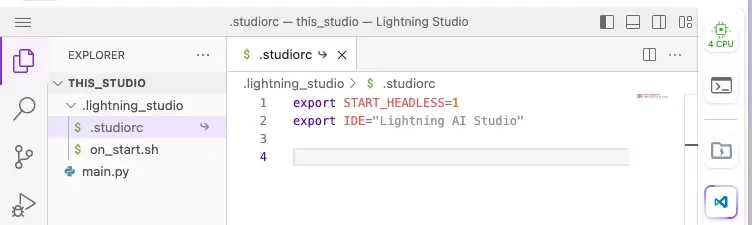
If you prefer coding up your environment variables or need advanced control mechanisms, use Studio's configuration file: the .studiorc.
The .studiorc is a configuration file for your entire Studio, and each user has their individual configuration, meaning that you can also use this file to have the same variables set in different Studios.
The file is loaded on the start for every single terminal shell. This means you can edit this file live, start a new terminal, and your changes are live already. It permits basic shell syntax to modify your entire Studio environment just like a .bashrc modifies the configuration and environment of bash sessions.
Secrets - Across the Teamspace
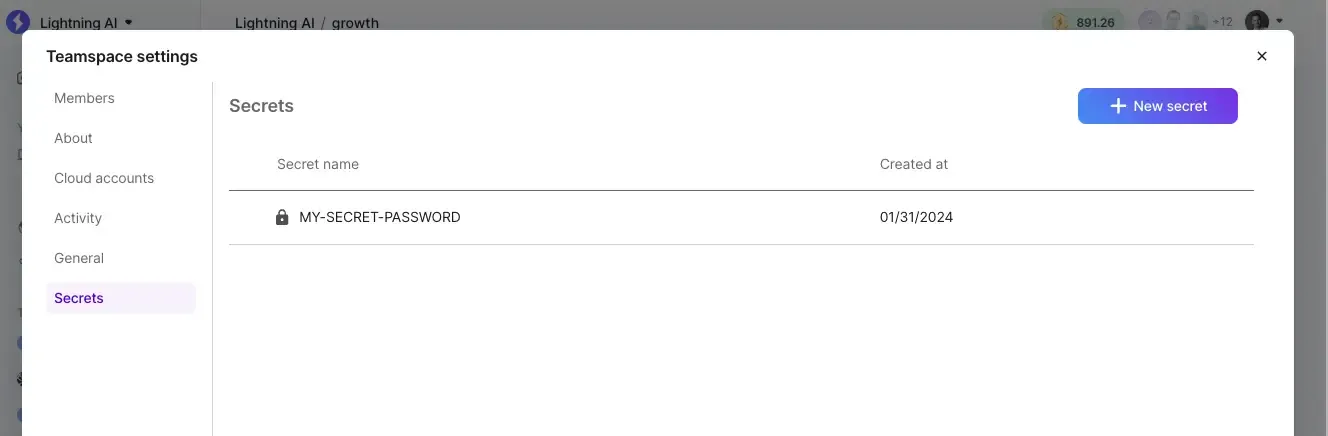
For common variables across your team, set the secrets in the Teamspace settings. All Studios and jobs in the Teamspace will have access to these secrets as environment variables. Learn more about secrets.
Using Environment variables
After learning how to create environment variables in various different ways, it's time to use them. To do so, open the terminal and use them as you would on your laptop.

If a terminal was open when you added an environment variable, restart it or open a new one to make the secret visible.
Was this page helpful?
Thanks for the feedback.