
Share datasets
Lightning AI provides various options for sharing datasets whether you're aiming to collaborate within your team, across your organization, or beyond.
Share within a teamspace
Explore methods to share datasets within a teamspace, ensuring smooth intra-team data access and collaboration.
Share a Studio as dataset
Create a shared dataset by either uploading to or downloading data from a Studio. After transferring data to the Studio, deactivate it and name it as the dataset.
Download (or upload) data to a Studio. Rename your dataset Studio for easy reference.
Now access this dataset easily from any Studio within the same teamspace.
You can access the data of one Studio from any other in the teamspace.
Please note: for training models with large datasets, optimize the dataset to speed up data loading by at least 20x.
Connect an S3 bucket
Another way to share a dataset in a teamspace is to connect an S3 bucket in the teamspace.
Adding a new external S3 bucket
This setup allows dataset access from any Studio in the teamspace.
Access data from a connected S3 bucket
Please note: for training models with large datasets, optimize the dataset to speed up data loading by at least 20x.
Share data in an organization
This section shows how to seamlessly share datasets across various teamspaces within your organization.
Export to S3 and connect
Share datasets by exporting to an S3 bucket and importing them into any required teamspace.
- Create an AWS S3 bucket. In this example we name it
s3-bucket-dataset-docs.
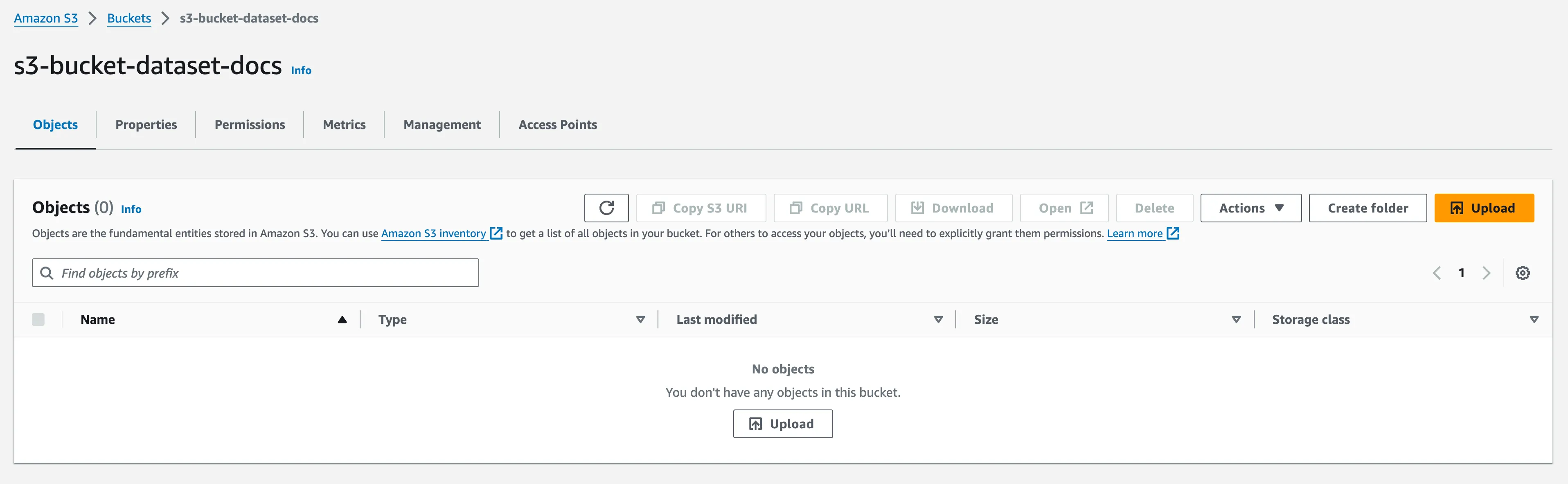
- Add the new S3 bucket as a data connection to your teamspace.
Add the private S3 bucket to the teamspace
- Transfer data from the Studio to the S3 bucket using AWS CLI.
Copy the data to the bucket using AWS CLI
After the transfer, access the data through the Studio terminal. The data is now within your private S3 bucket.
Data from your Studio are now present in your private S3 bucket
Publish a dataset Studio to an organization
Publish a Studio as a dataset to share across your organization.
Publish a dataset Studio to your organization's Studio templates gallery
Export data outside Lightning AI
This section describes how to export datasets from Lightning AI to external platforms.
Export to a public S3 bucket
Let's say you created a dataset on a Studio and want to export it outside of Lightning AI. To do this, first create an S3 bucket on your AWS account
- Let's set up an example S3 bucket named
s3-bucket-dataset-docs.
- Make the bucket public.
Make the S3 bucket public
- Add the public bucket as an S3 connection.
Add the public S3 bucket to the teamspace
- Transfer the dataset from the Studio to the S3 bucket using AWS CLI.
Copy the data to the bucket using AWS CLI
Access and use your dataset freely outside Lightning AI.
Data from your Studio are now present in your private S3 bucket
Publish a public Studio
To share datasets with anyone in the world, create a Studio as dataset and publish to the Lightning AI public Studio gallery.
Publish the Studio to the Lightning AI community Studio templates gallery
Was this page helpful?
Thanks for the feedback.