
Manage costs
Lightning AI teamspaces enable teams to track cloud costs for machine learning, view granular activity, add, transfer and buy credits. Set a team budget ahead of time to control the cost for AI projects.
Manage activity
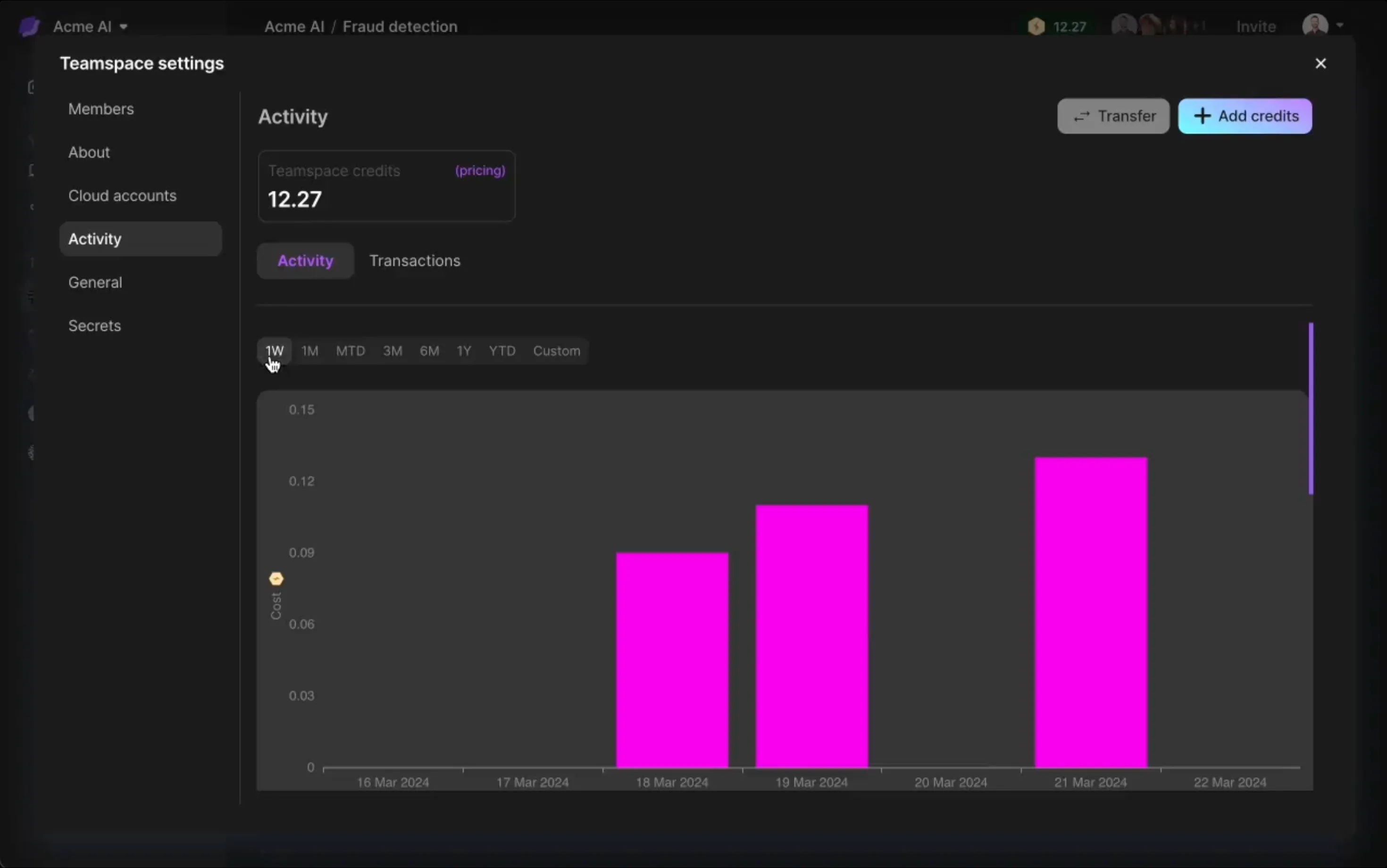
View credit use and activity by navigating to teamspace settings > Activity.
The activity tab shows credits used, machines used, purchases and credit transfers. Select different date ranges to explore the transactions.
Activity tab shows credits used, machine types used.
View transactions
Transactions track credits coming into and out of the teamspace. This includes purchases, transfers, and free credit c
View transactions by date.
Manage credits
This section describes how to add and remove credits to the teamspace.
Set credits auto-reload
Automatically replenish a teamspace's credit balance from the organization wallet when it falls below a specified "Threshold".
To enable a teamspace credits auto-reload, go to the teamspace settings, open the "General" section, and switch "Auto-reload credits" ON. You can then edit the "Reload amount" and "Threshold", or use the default values. All new teamspaces have the "Auto-reload credits" setting enabled by default.
Teamspace settings for credits auto-reload.
Only organization admins can enable and edit this setting.
Add credits
Only teamspace admins can add credits to the teamspace.
Add credits to the teamspace by pressing "add credits". Credits can come from the organization or another teamspace you are the admin of within that organization. Or you can buy more credits.
Buy credits
For personal teamspaces, click "add credits" to buy credits.
Add credits to your personal account.
Teamspaces in an organization cannot buy credits. They can only add credits from the organization. Contact an organization admin to transfer credits to the teamspace.
Was this page helpful?
Thanks for the feedback.